
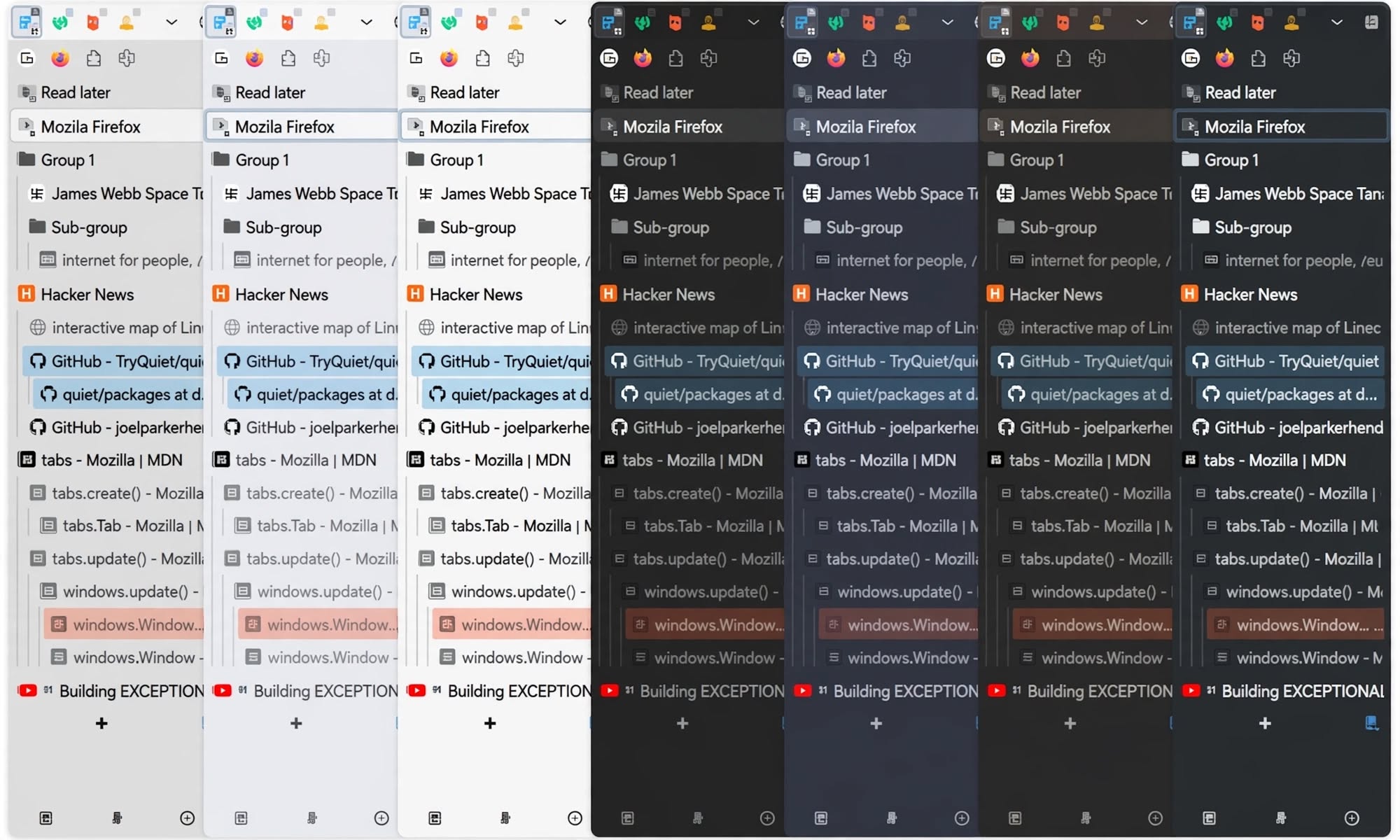
Managing multiple browser tabs can quickly become frustrating. Important research gets buried, work-related pages become mixed with personal browsing, and finding a website you opened earlier can waste valuable time.
For Firefox users facing this problem, Sidebery offers a smarter way to organize browser tabs, separate projects, and keep important pages within easy reach.
The extension introduces vertical tabs, hierarchical organization, customizable panels, and session-management features that turn a crowded browser into a more structured workspace.
Organize Your Tabs Instead of Losing Track of Them
Sidebery’s standout feature is its tree-style tab management. Instead of treating every website as a separate tab, users can arrange related pages beneath a main tab.
For example, someone researching a technology story can keep the original report alongside supporting articles and official sources. The related pages remain grouped together, making it easier to follow research without searching through a long row of tabs.
Sidebery also supports vertical tabs, which can make page titles easier to read when many websites are open simultaneously.
This approach is particularly useful for students, journalists, developers, and professionals who regularly switch between multiple sources or tasks.
Create Separate Spaces for Work, Study, and Research
Sidebery supports customizable panels that let users organize browsing activities into separate spaces.
A student could create one panel for coursework and another for personal browsing. A journalist could separate research for different stories, while a developer could keep project documentation apart from other websites.
The extension also provides access to bookmarks and browsing history through its panel system.
By keeping related pages together, users can spend less time searching for information and more time concentrating on the task at hand.
How to Get Started With Sidebery
Setting up Sidebery is straightforward:
1. Install the extension: Visit the "official Firefox Add-ons page" (https://addons.mozilla.org/firefox/addon/sidebery/) and install Sidebery.
2. Open Sidebery: Access it through Firefox’s sidebar or extension controls.
3. Organize your tabs: Explore the settings and choose a tab layout that suits your workflow.
4. Create panels: Separate work, study, research, and other browsing activities.
5. Customize your workspace: Adjust the available settings and explore snapshots for saving and restoring browsing sessions.
Start with basic tab organization before experimenting with advanced settings. This makes it easier to build a setup that genuinely improves your workflow.
Save Browsing Sessions and Return to Work Later
Closing a browser window or leaving a large collection of tabs open is not always practical, especially when working on a long-term project.
Sidebery includes snapshot functionality that can help users save and restore browsing sessions. This allows users to preserve a collection of tabs and return to it when needed.
For example, someone researching an assignment over several days could save the relevant browsing session rather than keeping every page open continuously.
Users should test the snapshot and restoration process first and maintain separate copies of important links or research notes.
What to Know Before Installing Sidebery
Sidebery is designed for Firefox, so users of Chrome or Brave will need to look for alternatives suited to those browsers.
There is also a learning curve. Its customization options offer flexibility, but users may need time to configure panels and layouts. Changing the appearance or behavior of Firefox’s default tab bar may require additional configuration, too.
For users who prefer a simple browsing experience with only a few tabs open, Firefox’s built-in features may already be sufficient.
However, those who regularly manage dozens of websites may find Sidebery’s organization tools worthwhile.
The Bottom Line
Too many open tabs can make it harder to find information, maintain focus, and move between projects efficiently.
Sidebery addresses this problem by helping Firefox users group related pages, create separate browsing spaces, and manage saved sessions. While it takes some time to customize, it offers a practical option for people who want a more organized browser.
If your tabs regularly turn into a confusing collection of open pages, Sidebery could help you regain control of your browsing and spend less time searching for the websites you need.