
An older Android phone does not always need a new battery, a factory reset, or an expensive upgrade to feel more responsive.
Some changes hidden inside Developer Options can reduce the delays you notice when opening apps, switching between screens, scrolling, and moving through menus. They do not magically add processing power, but they can make everyday interaction feel considerably quicker.
Android's Developer Options contain many advanced controls, so it is better to change only settings you understand rather than randomly enabling different switches.
First, Enable Developer Options
Developer Options are normally hidden from the main Settings menu. The exact location can vary between manufacturers, but the usual method is:
1. Open Settings.
2. Go to About phone.
3. Find Build number. On some phones, it is inside Software information.
4. Tap Build number seven times quickly.
5. Enter your phone's PIN, password, or pattern if requested.
6. A message should confirm that Developer Options have been enabled.
7. Return to Settings and look for Developer Options, usually under System or another advanced-settings section.
Once the menu is available, there are three settings worth understanding.
Reduce the Animation Scales
This is probably the easiest change to notice.
Android uses animations when opening windows, switching between screens, displaying menus, and performing other interface actions. These effects make the interface look smoother, but on an older or less powerful phone they can sometimes make the device seem slower than it actually is.
Developer Options includes three relevant controls:
Window animation scale
Transition animation scale
Animator duration scale
A commonly used setting is 0.5x for all three.
At 0.5x, animations still appear, but they finish much sooner. Opening menus and switching between screens can therefore feel more immediate.
The animation scales can also be set to Off, which removes the animations completely. That can make the interface appear even faster, although some people may find the sudden screen changes less natural.
The important thing to remember is that this does not make the processor faster. It simply reduces the amount of time spent watching interface animations.
Use the Highest Refresh Rate When Your Phone Supports It
Some Android phones have displays capable of running at 90Hz, 120Hz, or higher instead of the traditional 60Hz.
A higher refresh rate can make scrolling and supported animations look smoother. Modern Android phones can also automatically switch between refresh rates depending on what is happening on the screen.
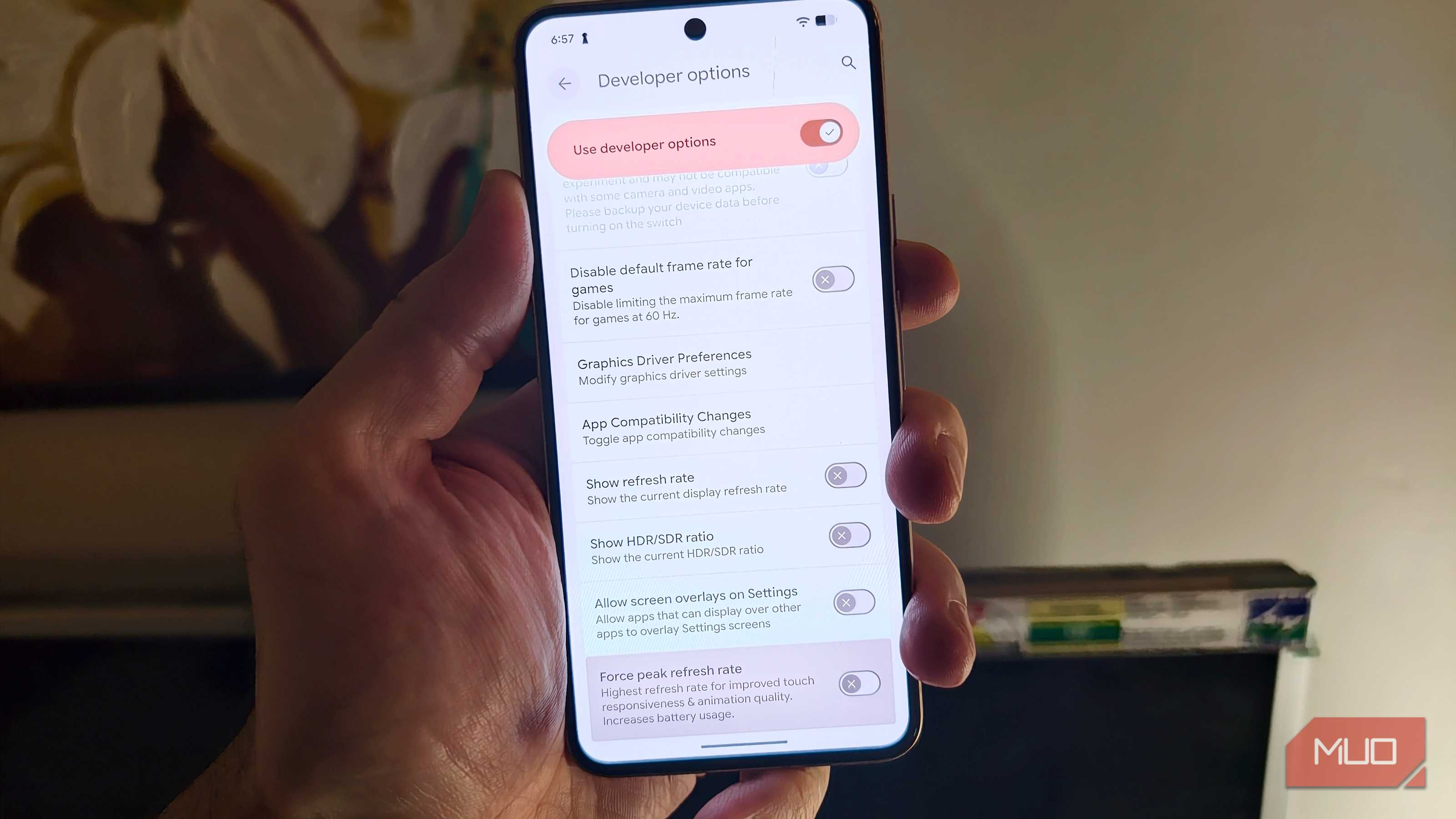
Certain devices include a Developer Options setting called Force peak refresh rate. If the option exists on your phone, enabling it can keep the display at its highest supported refresh rate rather than allowing the system to lower it in some situations.
However, there is a trade-off: higher refresh rates generally consume more battery.
This setting also cannot turn a 60Hz display into a 120Hz display. The phone's hardware must already support the higher refresh rate.
Before using the Developer Options setting, check the normal Display settings on the phone. Many devices already provide an adaptive or high-refresh-rate option there.
Be Careful With the Background Process Limit
The Background process limit controls how many processes Android can keep running in the background.
Reducing this limit can sometimes help a phone with limited memory by preventing too many processes from remaining active. However, this setting is more complicated than the animation controls.
If the limit is reduced too aggressively, Android may close background apps more frequently. Apps may then need to reload when opened again, and some background activities may not work as expected.
For that reason, do not automatically set the limit to four simply because it is a popular recommendation.
If an older phone is struggling with multitasking, the setting can be tested carefully. If apps constantly reload or notifications become unreliable, return the option to its default setting.
What These Tweaks Can—and Cannot—Do
These Developer Options can improve the way an Android phone feels, but they are not a secret hardware upgrade.
Reducing animation speed does not increase CPU speed. Increasing the refresh rate does not give the processor more power. Limiting background processes does not add RAM.
A phone that struggles to run a demanding game will not suddenly become capable of maintaining a higher frame rate simply because its animation settings were changed.
The biggest difference is usually in everyday interaction. Menus can appear sooner, transitions can finish faster, and scrolling can look smoother when the hardware supports a higher refresh rate.
Change One Setting at a Time
Developer Options contain many controls intended mainly for testing and development. Changing unrelated options without understanding them can create unexpected behavior.
A safer approach is to change one setting, use the phone normally for a while, and then decide whether the difference is actually useful.
For most people, reducing the three animation scales to 0.5x is the simplest place to start. If the device supports a high refresh rate, checking its refresh-rate settings is another worthwhile step.
Background-process limits should be treated more cautiously because they can affect how apps behave in the background.
The goal is not to transform an old Android phone into a flagship. It is simply to remove some unnecessary waiting and make the device feel more responsive during normal use.