
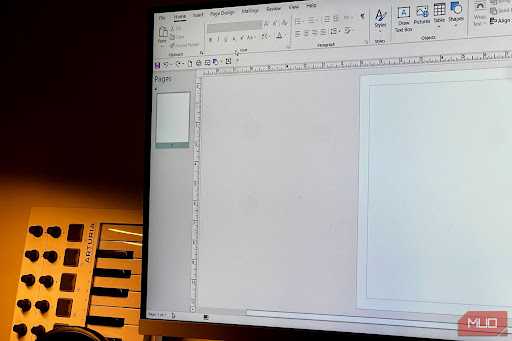
MICROSOFT PUBLISHER IS COMING TO AN END
Microsoft Publisher, the desktop-publishing application that has been used for brochures, flyers, newsletters, calendars and other designed documents for years, is approaching its final days.
Microsoft says Publisher will reach end of life in October 2026. Microsoft 365 subscribers will no longer have access to Publisher after October 1, 2026, while support for perpetual Office 2021 editions ends on October 13, 2026.
That does not mean your existing Publisher files will suddenly be deleted.
The bigger problem is that Microsoft 365 users will no longer be able to open or edit their ".pub" files using Publisher after the retirement date.
That makes the next few weeks an important window for anyone with years of Publisher documents stored on a computer, OneDrive or SharePoint.
YOUR .PUB FILES ARE NOT BEING DELETED
The end of Publisher does not automatically erase your files.
Your ".pub" documents can remain wherever you currently store them.
However, Microsoft recommends converting important files before October 1 because Microsoft 365 subscribers will lose the ability to open or edit them in Publisher after that date.
The safest approach is therefore to identify your important Publisher files now and create copies in formats that can continue to be opened.
STEP 1: FIND ALL YOUR PUBLISHER FILES
Before converting anything, find out exactly how many Publisher files you have.
You may have documents scattered across different folders rather than stored in one location.
1. Open File Explorer on your Windows computer.
2. Search for ".pub".
3. Check the results carefully and identify the files you still need.
4. Check other locations such as OneDrive and SharePoint if you use them.
5. Create a separate backup folder for your important Publisher documents.
Microsoft specifically recommends searching for ".pub" files on your PC, OneDrive or SharePoint.
STEP 2: SAVE IMPORTANT FILES AS PDF
For documents that mainly need to be viewed, printed or shared, PDF is the safest format to preserve the original appearance.
1. Open the Publisher document.
2. Select File.
3. Choose Save As or use Publisher's PDF export option.
4. Select PDF as the file type.
5. Choose where you want to save the PDF.
6. Give the PDF a clear filename.
7. Select Save or Publish.
8. Open the new PDF and check that the pages, images, text and layout look correct.
Microsoft recommends PDF as an option for preserving Publisher content because it can be viewed and shared without Publisher.
KEEP THE ORIGINAL .PUB FILE TOO
Even after creating a PDF, do not immediately delete the original Publisher file.
Keep the ".pub" file as an additional backup.
This gives you both the original source document and a version that can be opened more easily in the future.
STEP 3: CONVERT FILES THAT MAY NEED FUTURE EDITING
PDF is excellent for preserving the appearance of a publication, but it is not the same as having an editable Publisher document.
If you expect to modify the content later, Microsoft suggests opening the converted PDF in Word.
1. First create a PDF copy of the Publisher document.
2. Open Microsoft Word.
3. Select File.
4. Choose Open.
5. Locate the PDF you created.
6. Open the PDF.
7. When Word asks whether it should convert the PDF into an editable document, confirm the conversion.
8. Review the resulting Word document carefully.
9. Save the converted document as a Word file.
There is an important catch: Word is designed primarily for text editing, so complex Publisher layouts may change during conversion.
STEP 4: CHECK THE CONVERTED DOCUMENT CAREFULLY
Do not assume that a successful conversion means the document looks exactly like the original.
Pay particular attention to:
1. Columns.
2. Images.
3. Text boxes.
4. Tables.
5. Graphs.
6. Page breaks.
7. Fonts.
8. Spacing.
9. Headers and other visual elements.
If the design has moved around, you may need to rebuild parts of the publication in another application.
STEP 5: CHOOSE A REPLACEMENT FOR FUTURE PROJECTS
Microsoft does not have one single replacement for every Publisher project.
Instead, it recommends using other Microsoft 365 applications depending on what you are creating.
For many projects, Word or PowerPoint can provide suitable alternatives. Microsoft specifically points users toward these applications for common Publisher tasks such as cards, brochures, flyers, business cards, calendars and other publications.
For more design-focused work, users can also consider dedicated desktop-publishing applications.
The important point is to choose your replacement based on the type of publication you normally create.
STEP 6: BACK UP YOUR CONVERTED FILES
Do not keep your only copy on the same computer.
After converting your important Publisher files:
1. Keep the original ".pub" file.
2. Keep the converted PDF.
3. Keep an editable Word version when appropriate.
4. Store a copy on another drive or storage device.
5. Consider keeping another copy in a cloud-storage service.
This gives you several ways to recover your work if one copy becomes unavailable.
STEP 7: HANDLE LARGE PUBLISHER ARCHIVES
If you have hundreds or thousands of ".pub" files, converting them one at a time could take an enormous amount of time.
Microsoft provides a sample PowerShell script that can automate the conversion of multiple Publisher files to PDF. The script can work with individual files, folders and subfolders.
For a large archive:
1. Make a backup of the original ".pub" files first.
2. Make sure you have a working, licensed version of Publisher available.
3. Obtain Microsoft's sample "Convert-PubFileToPDF.ps1" script.
4. Test the script on a small group of files first.
5. Check the resulting PDFs carefully.
6. Once you are satisfied with the results, process the larger archive.
7. Review the conversion results and identify any files that failed.
8. Keep the original ".pub" archive even after conversion.
This is particularly useful for organizations or individuals who have accumulated years of Publisher documents.
WHAT HAPPENS TO OFFICE 2021 USERS?
The situation is slightly different for people using a perpetual version of Publisher rather than Microsoft 365.
Microsoft says the perpetual version can still be used after support ends, provided it remains installed, but it will no longer receive Microsoft's support and security updates.
That does not make older Publisher installations a good long-term migration strategy.
Converting important files now means you are not dependent on keeping an unsupported application running indefinitely.
WHY THIS CHANGE MATTERS
Publisher has been particularly useful for people who wanted more layout control than a traditional word processor offered.
It has been used for everything from school publications and newsletters to business cards, brochures and community documents.
Its retirement therefore affects more than just Microsoft 365 users who occasionally opened the application.
Anyone with a large collection of ".pub" files should think about the future accessibility of those documents.
THE DEADLINE IS CLOSER THAN IT LOOKS
Microsoft says Microsoft 365 users can continue using Publisher until October 1, 2026.
After that, they will lose access to Publisher through their Microsoft 365 subscription.
That means users should not wait until the final day to start converting important documents.
Large archives can take considerable time to organize and check, especially when some publications contain complicated layouts.
THE BOTTOM LINE
Microsoft Publisher is reaching the end of its life in October 2026.
Your ".pub" files are not being automatically deleted, but Microsoft 365 users will no longer be able to open or edit them in Publisher after October 1.
The safest approach is simple:
Find your important ".pub" files.
Create PDF copies for long-term viewing and printing.
Convert important documents to Word when future editing is necessary.
Check every converted file for layout problems.
Back up the originals and converted copies.
For large collections, consider Microsoft's PowerShell bulk-conversion option.
Publisher may be disappearing from Microsoft 365, but your documents do not have to disappear with it.