
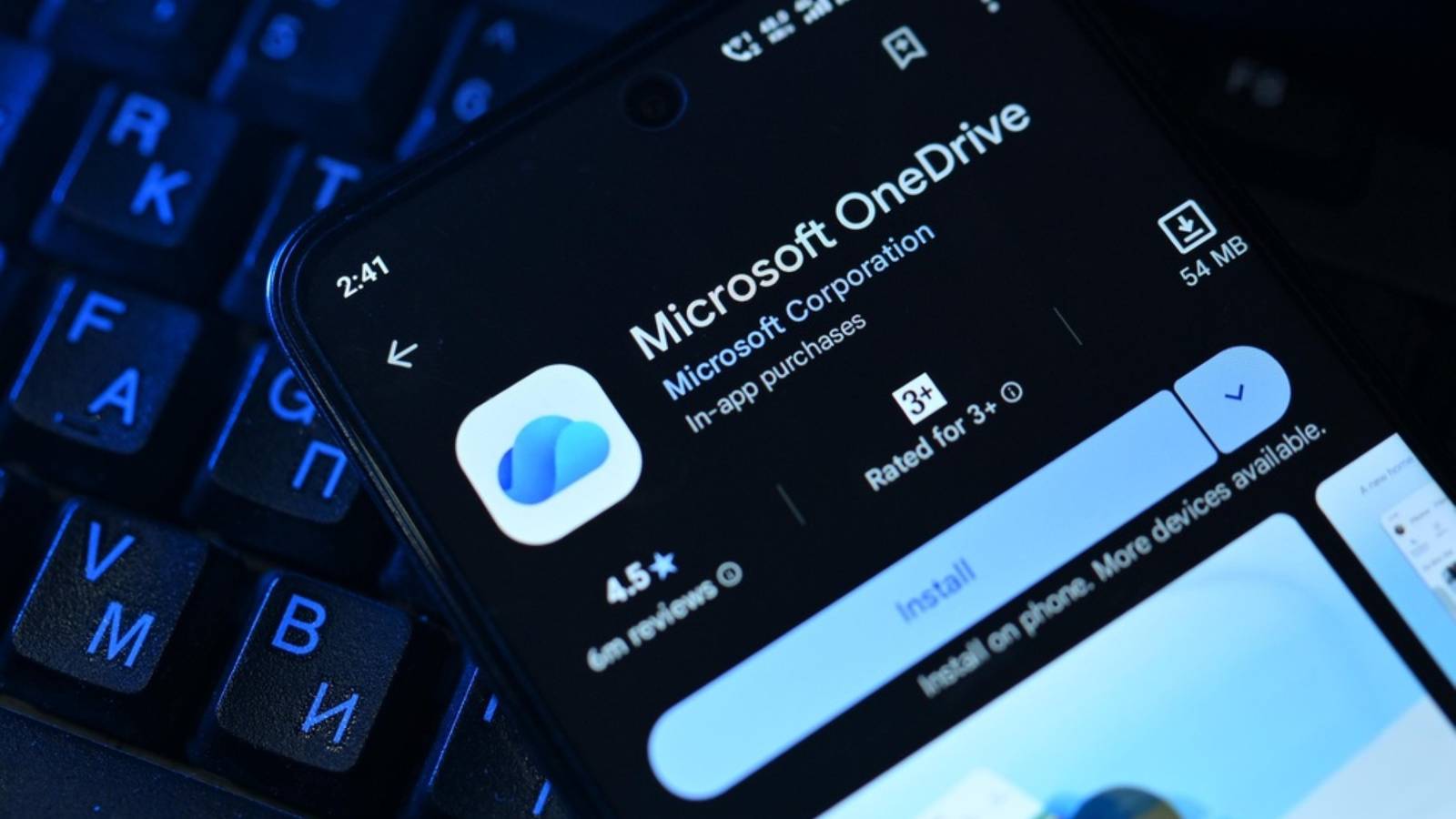
A MAJOR CHANGE IS COMING TO SAMSUNG GALLERY
Samsung Galaxy owners who rely on OneDrive to back up their photos have an important deadline approaching.
From September 30, 2026, Samsung Gallery will no longer synchronize directly with Microsoft OneDrive. Users who depend on the existing integration will need to change their backup setup if they want new photos and videos to continue uploading automatically.
The change does not mean Microsoft is deleting users’ existing photographs. Instead, it changes how Samsung Gallery and OneDrive work together.
YOUR EXISTING ONEDRIVE PHOTOS ARE NOT BEING DELETED
The most important point for Galaxy users is that photographs already stored in OneDrive will remain there.
They will still be accessible through the OneDrive app, OneDrive.com and other devices connected to the account.
However, those cloud-stored photographs will no longer appear directly inside Samsung Gallery once the integration ends.
So, if an important photograph seems to disappear from Samsung Gallery, it does not necessarily mean it has been erased. It may simply still be safely stored in OneDrive.
WHO WILL BE AFFECTED?
The change mainly affects Samsung users who have been using the Samsung Gallery and OneDrive synchronization feature.
Samsung Gallery itself is not being discontinued.
The app will continue to work as the phone’s local photo viewer and editor. Photos stored directly on the Galaxy device will remain available.
The major difference is that Samsung Gallery will no longer have direct access to the OneDrive photo library through the current synchronization system.
THE EASIEST WAY TO KEEP USING ONEDRIVE
Users who want to continue backing up their Galaxy photos to OneDrive can switch from Samsung Gallery synchronization to OneDrive’s separate Camera Backup feature.
1. Open the OneDrive app on your Samsung Galaxy phone.
2. Sign in using the Microsoft account where your existing photos are stored.
3. Tap your profile picture in the upper-left corner.
4. Select Camera backup.
5. Check that the correct Microsoft account is selected.
6. Turn Camera backup on.
7. When Android asks for permission to access your photos and videos, allow OneDrive the required access.
8. Check your available OneDrive storage to make sure there is enough space for your photos and videos.
9. Take a new test photo with your Galaxy phone.
10. Open OneDrive and confirm that the test photo has been uploaded successfully.
11. If the test works, continue using Camera Backup for your automatic photo backups before the September 30, 2026 deadline.
TEST THE BACKUP BEFORE SEPTEMBER 30
Do not wait until the deadline to discover that your backup is not working.
After enabling Camera Backup, take a new photograph and check whether it appears in OneDrive.
This quick test can confirm that the correct account is connected, the necessary permissions have been granted and there is enough cloud storage.
ONE IMPORTANT DIFFERENCE YOU SHOULD KNOW
There is an important difference between the old Samsung Gallery integration and OneDrive Camera Backup.
The previous Gallery arrangement provided synchronization between the phone and OneDrive.
Camera Backup works as a backup system rather than the same two-way synchronization arrangement.
This means users should understand how their photographs are stored and managed before changing their settings.
WHAT IF YOU DON'T WANT TO USE ONEDRIVE?
Galaxy users are not required to remain with OneDrive.
Another option is to move their photo backups to a different cloud service, such as Google Photos.
The important thing is to make sure the replacement service is properly backing up photographs before abandoning the old setup.
Users should also check their existing OneDrive library. If some important photographs exist only in the cloud, downloading additional copies to another storage location can provide extra protection.
SAMSUNG GALLERY WILL STILL WORK FOR LOCAL PHOTOS
The end of OneDrive integration does not mean Samsung Gallery is disappearing.
The app will continue functioning as a local photo viewer and editor.
Photographs stored directly on the Galaxy device will remain available through Gallery.
The major change is that photographs stored in OneDrive will no longer be directly integrated into Samsung Gallery after September 30.
SAMSUNG MAY ALSO BE MOVING TOWARD A NEW CLOUD OPTION
The OneDrive change has attracted additional attention because reports in September 2026 indicated that a Samsung Gallery Cloud Sync service had appeared in the Galaxy Store.
Reports suggested that the service description referred to backing up photos and videos using Google Cloud.
However, Samsung has not provided enough official information for users to treat this as a confirmed replacement for the current OneDrive arrangement.
For now, Galaxy owners should use an officially supported backup service and verify that their photos are actually being uploaded.
DON'T WAIT UNTIL THE DEADLINE
The easiest way to avoid problems is to check your backup settings before September 30.
If you want to continue with OneDrive, activate Camera Backup and test it.
If you prefer another cloud service, set it up and confirm that your photographs are uploading successfully.
For especially important memories, keeping another copy outside your primary cloud account can provide additional protection.
THE 3-2-1 BACKUP RULE STILL MATTERS
Cloud services are convenient, but companies can change their software features and partnerships.
For important photographs and files, the 3-2-1 backup approach remains useful.
It means keeping three copies of important data, using at least two different types of storage and keeping at least one copy away from your main device.
This reduces the risk of losing important memories because of a device failure, account problem or change in a cloud service.
THE BOTTOM LINE
Samsung Gallery’s direct OneDrive synchronization is ending on September 30, 2026.
Existing photographs stored in OneDrive will not be deleted, but they will no longer appear directly inside Samsung Gallery.
New photos will also need a different backup arrangement if users want them automatically uploaded to the cloud.
For OneDrive users, switching to Camera Backup before the deadline is the straightforward option.
A few minutes of preparation now can help ensure that your photographs remain safely backed up.