A “HEALTHY” SSD DOESN’T MEAN IT CAN’T FAIL
SSDs have transformed computer storage by making PCs faster, quieter and more resistant to mechanical damage than traditional hard drives.
But there is one important misconception about SSDs: a drive showing 100% health is not a guarantee that it will keep working.
SSD failures can sometimes happen suddenly, without the obvious warning signs people traditionally associate with failing hard drives.
A computer may begin crashing, applications may behave strangely or Windows may report storage-related errors. In some cases, the problem can look like a software or operating-system failure rather than a dying SSD.
SMART IS USEFUL — BUT IT ISN'T A CRYSTAL BALL
Most modern drives provide S.M.A.R.T. information, short for Self-Monitoring, Analysis and Reporting Technology.
This information records various aspects of a drive's condition.
Tools such as CrystalDiskInfo can display information including drive health, temperature, power-on hours, power-on count and various drive-specific SMART attributes.
For SSDs, health information can include indicators related to remaining life or available reserve capacity, depending on the manufacturer and controller.
That information is valuable.
But it should be treated as a monitoring tool rather than a promise that the drive will remain operational.
WHY 100% HEALTH CAN STILL BE MISLEADING
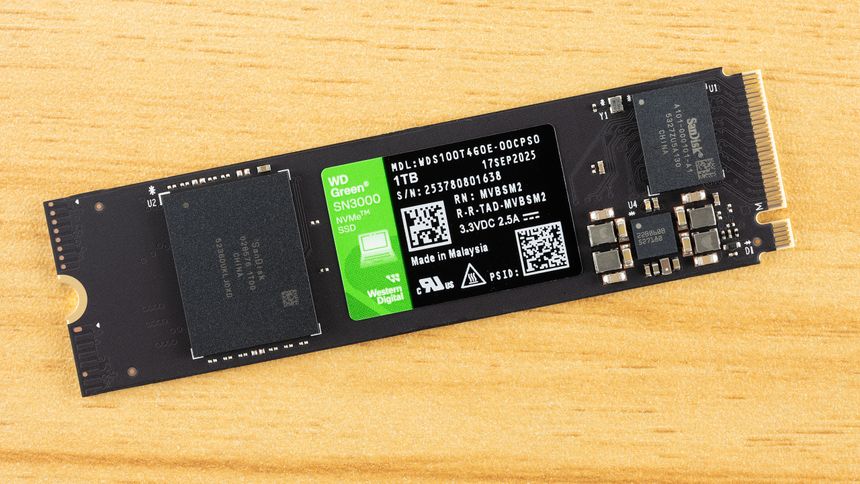
An SSD contains much more than its NAND flash memory.
It also has a controller, firmware, power-management circuitry and other components responsible for making the storage system work.
SMART information primarily reflects what the drive is able to report about its condition.
It cannot guarantee that every component will continue working normally.
For example, a sudden controller or firmware problem can potentially make a drive inaccessible even when its reported wear level does not look alarming.
THE SSD CONTROLLER IS A CRITICAL COMPONENT
Think of the SSD controller as the traffic manager between your computer and the NAND flash.
It handles important operations such as managing data, wear leveling, error correction and the mapping between logical addresses and physical storage.
If the controller develops a problem, the computer may suddenly experience storage errors even though the NAND itself has not reached the end of its expected lifespan.
Possible warning signs can include:
1. Unexpected input/output errors.
2. The drive temporarily disappearing from the system.
3. Unusual delays when reading or writing data.
4. Inconsistent storage performance.
5. Incorrect or unusual drive information.
These symptoms should not automatically be blamed on the SSD because cables, drivers, motherboard interfaces and other hardware can also cause storage problems.
FIRMWARE CAN ALSO CAUSE TROUBLE
SSD firmware controls how the drive operates.
A firmware bug or corruption can therefore cause problems that are not necessarily reflected by a simple percentage-based health score.
This is another reason not to treat a “100%” reading as proof that everything inside the drive is perfect.
Microsoft's storage documentation also demonstrates that storage health can involve conditions such as controller or flash errors and I/O failures, showing why a simple health indicator cannot represent every possible storage problem.
POWER LOSS CAN ALSO PUT DATA AT RISK
SSDs can also experience data problems when power is interrupted during a write operation.
Whether data is protected depends on the drive's design and the exact stage of the write process when power is lost.
For important systems, reliable backups and appropriate power protection can therefore be more valuable than simply watching the SSD's health percentage.
SSDs ARE TOUGH — BUT NOT INVINCIBLE
Unlike traditional hard drives, SSDs have no spinning platters or mechanical read/write heads.
That eliminates many forms of mechanical wear.
But an SSD is still electronic hardware.
Physical damage, electrical problems, excessive heat or component failure can still affect it.
So while SSDs avoid many mechanical failure modes associated with HDDs, they are not immune to unexpected failure.
HOW TO CHECK YOUR SSD'S HEALTH
Checking SMART information is still worthwhile.
It can reveal useful information about the drive and may provide an early warning when the drive's reported condition is deteriorating.
On Windows, applications such as CrystalDiskInfo can display SMART information and a general health status such as Good, Caution or Bad.
To perform a basic check:
1. Install a reputable storage-health utility such as CrystalDiskInfo.
2. Open the application.
3. Select the SSD you want to examine.
4. Check the overall health status.
5. Look at the drive temperature.
6. Check the reported SMART attributes.
7. Look for warnings, errors or unusual changes.
8. Record the results so you can compare them during future checks.
A “Good” result is encouraging, but it should not replace backups.
WATCH FOR REAL-WORLD WARNING SIGNS
SMART information is only one part of the picture.
If Windows starts producing repeated storage-related errors, the computer freezes during disk operations or the SSD repeatedly disappears and reappears, investigate the problem rather than assuming everything is fine because the health percentage looks good.
Windows Event Viewer can also provide useful information about storage and filesystem problems.
Relevant events may involve components such as disk, NTFS, storage controllers and NVMe or SATA drivers.
However, interpreting these events requires care because a storage error does not automatically prove that the SSD itself is defective.
DON'T STRESS-TEST A DRIVE THAT MAY ALREADY BE FAILING
Heavy testing can put additional workload on a storage device.
If you already suspect that an SSD is failing and the data on it is important, prioritize securing the data before performing demanding benchmarks or stress tests.
If the drive is still readable, copying or cloning important data to another storage device can be more important than obtaining a perfect diagnostic result.
THE BEST SSD PROTECTION IS STILL A BACKUP
There is one solution that does not depend on predicting exactly when an SSD will fail: maintain backups.
CISA recommends the 3-2-1 backup strategy for important data: keep three copies, use two different types of storage or media, and keep one copy off-site.
For a personal computer, that could mean:
1. Your main copy on the computer.
2. A backup on an external storage device.
3. Another backup stored separately, such as in a properly secured cloud service.
The exact setup can vary depending on how much data you have and how important it is.
WHY BACKUPS MATTER MORE THAN A HEALTH SCORE
Imagine having years of photographs, school projects or important documents on an SSD.
The drive reports “Good.”
Everything seems normal.
Then the SSD suddenly becomes inaccessible.
A health report cannot restore those files.
A backup can.
That is why SSD monitoring and backups should work together rather than being treated as alternatives.
SMART CAN WARN YOU — BUT BACKUPS SAVE YOU
SMART information remains useful.
It can show wear, temperatures and other indicators that may help identify a deteriorating drive. CrystalDiskInfo itself notes that its health status is based on information reported by the drive and cannot predict the exact date of failure or guarantee how long a drive will continue operating.
The mistake is relying on that information as if it were a guarantee.
A healthy SMART report means the drive is not currently reporting certain problems.
It does not mean the SSD is invincible.
THE BOTTOM LINE
SSDs can fail differently from traditional hard drives, and some failures may happen with little warning.
SMART and tools such as CrystalDiskInfo are valuable for monitoring storage health, but they cannot predict every controller, firmware, electrical or other hardware problem.
So don't wait for your SSD to turn red before protecting your files.
Check its health periodically.
Pay attention to unusual storage behavior.
Keep important files backed up.
And for data you absolutely cannot afford to lose, follow a 3-2-1 backup strategy.
Your SSD's health percentage can tell you a lot — but your backup is what protects you when the unexpected happens.